# Custom emojis
You can create custom emojis to use in your reactions!
**Note:** currently custom emojis only work on reactions, and not in the message editor to be sent in line in your message. We are working on adding that additional functionality!
## Create a custom emoji
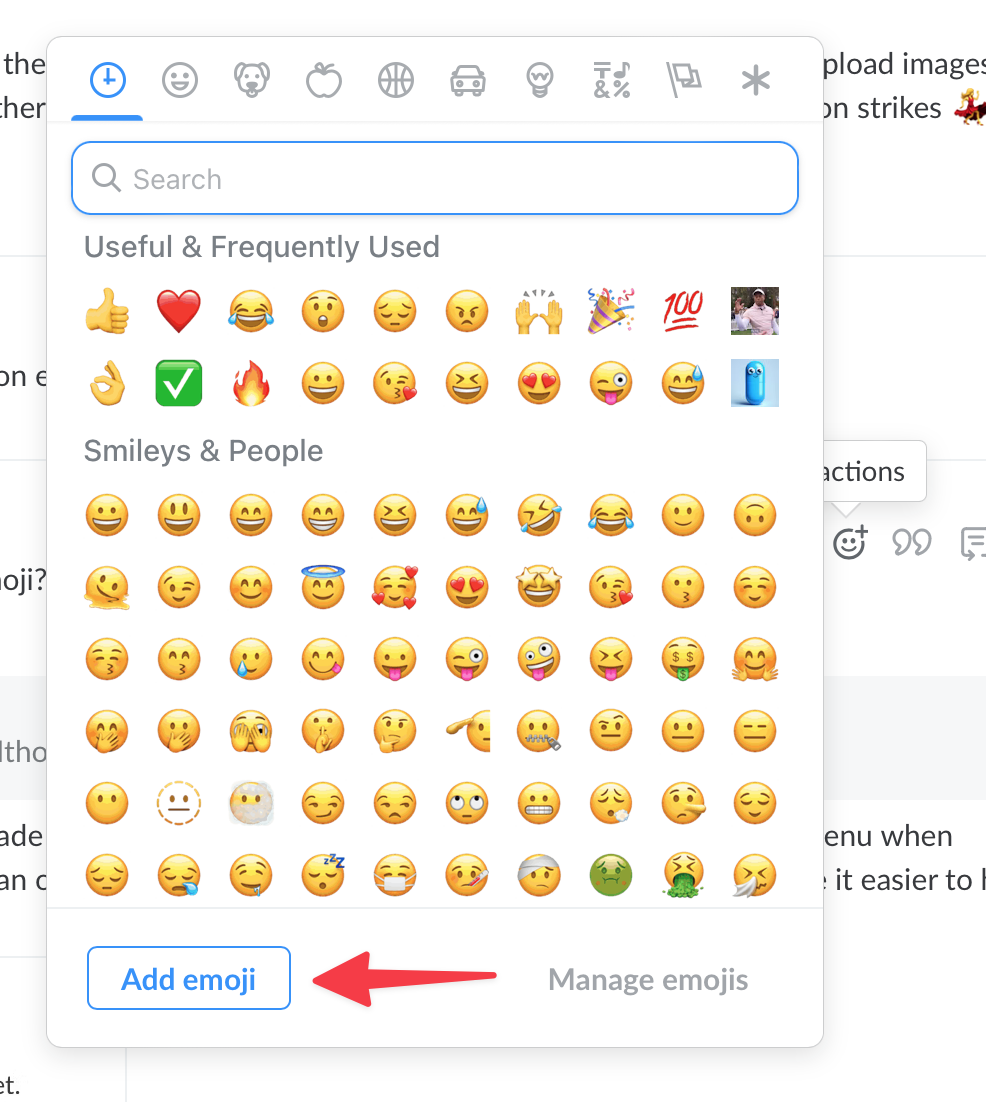
1. To add a new reaction emoji, hover over a message that's been sent and click on the Reactions icon
2. Then click **Add emoji** at the bottom of the emoji picker modal
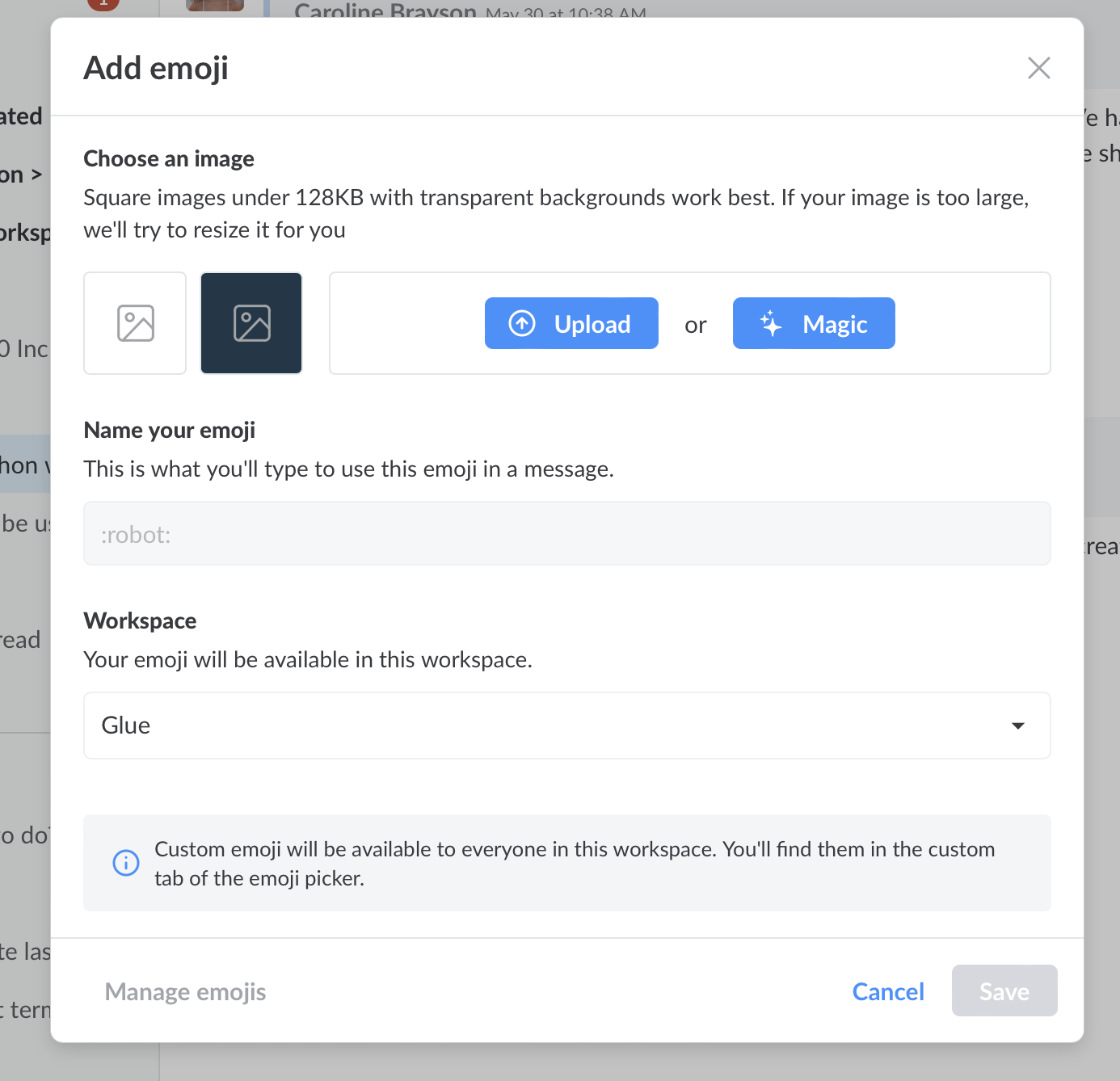
3. Users have two options when creating a new custom emoji
* Upload an image or gif file to create a new emoji
* Choose the **Magic** option to have Glue AI generate an emoji based on your description
4. Name your emoji or use the auto generated name
5. If you are in more than one workspace, choose which workspace you would like to add your new emoji to.
6. Save!
Add emoji modal
{% hint style="info" %}
A custom emoji will only live in one workspace. People outside of your workspace can see the emoji if you use it on a thread with them, but they will have to add it to their workspace to be able to use it themselves.
{% endhint %}
## Manage custom emojis
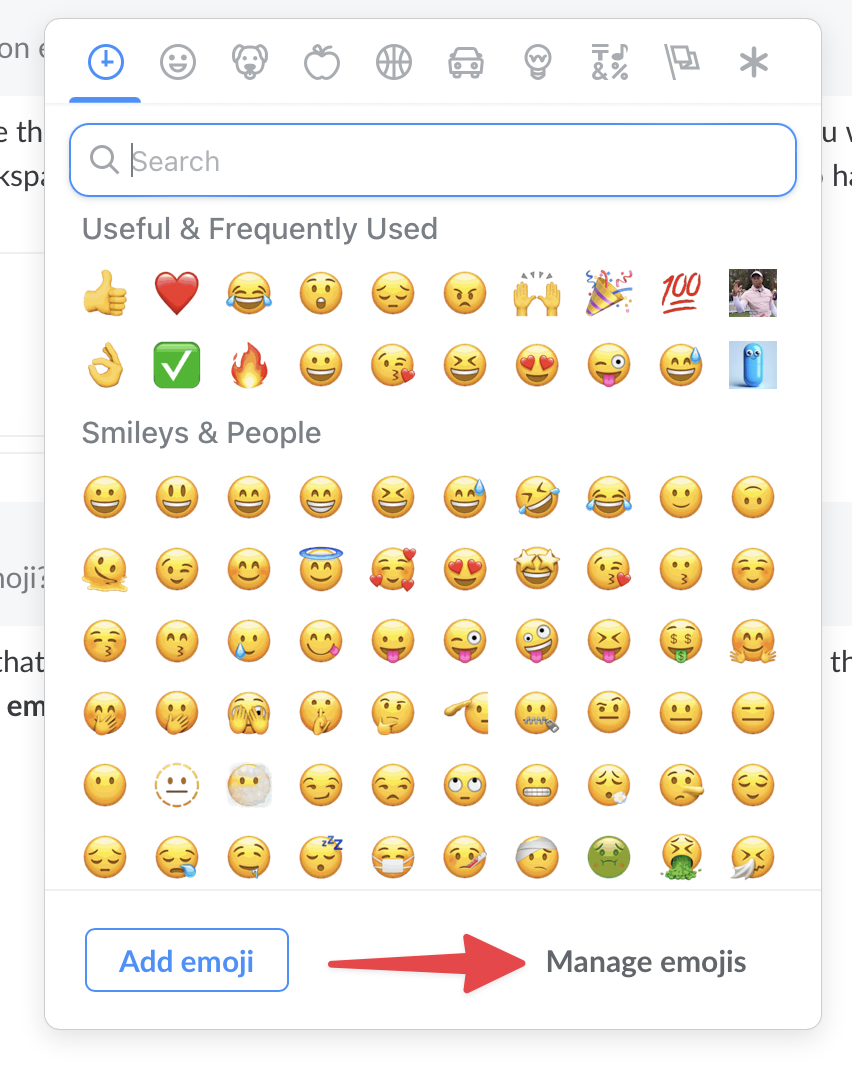
* Hover over a message sent in Glue and select the Reactions (emoji) button
* Click **Manage emojis** under the reaction emoji picker modal.
* There you will be able to view the custom emojis in any of your workspaces.
* Users can delete any emoji that they created.
* Workspace admins can delete any custom emoji in their workspace.