> For the complete documentation index, see [llms.txt](https://docs.glue.ai/llms.txt). Markdown versions of documentation pages are available by appending `.md` to page URLs; this page is available as [Markdown](https://docs.glue.ai/conversations/resource-sidebar.md).
# Resource sidebar
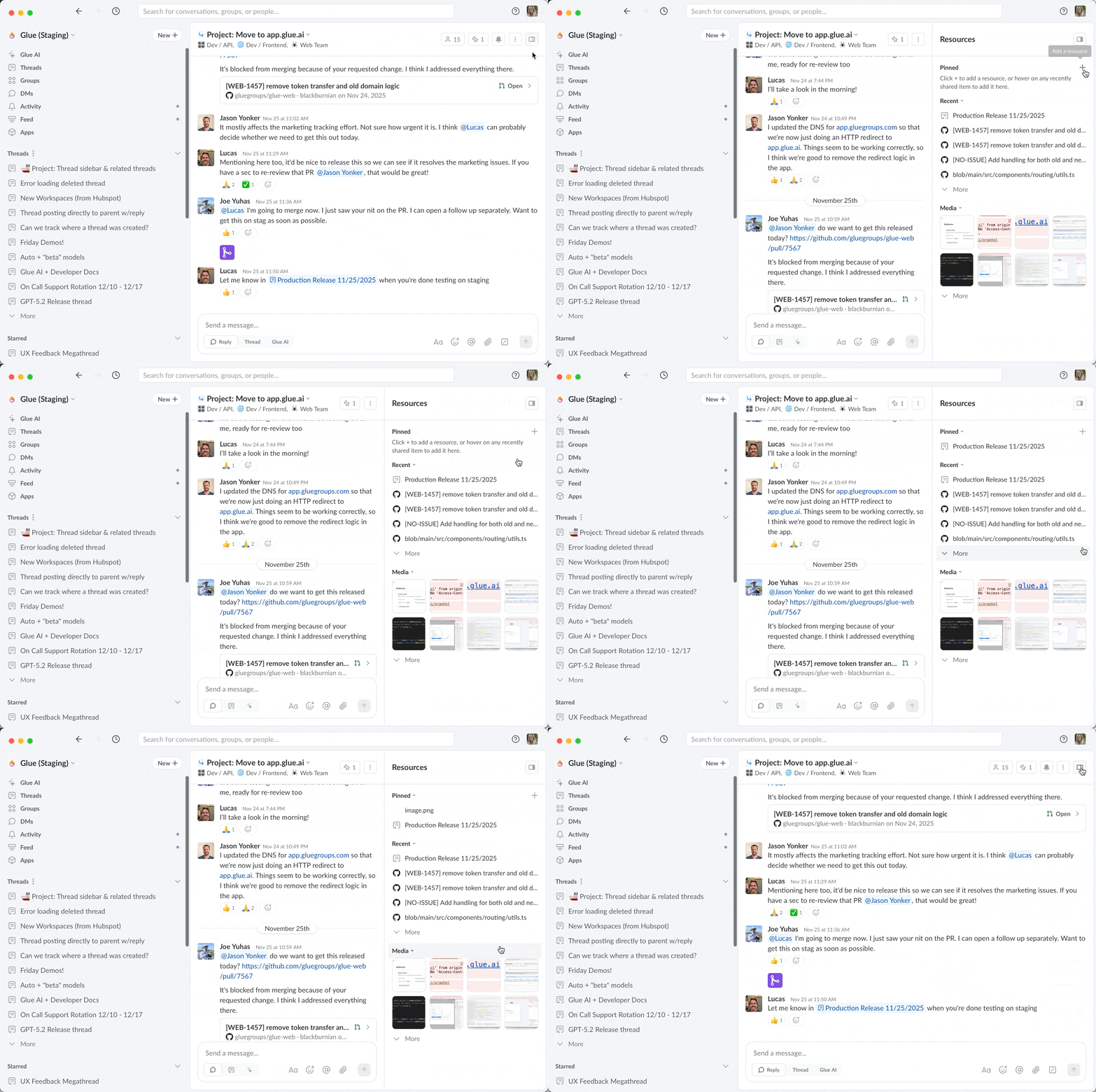
The resource sidebar helps you connect related conversations and files in one accessible place. It automatically tracks links, threads, and media shared in your conversations, and lets you pin the most important ones for quick access.
***
## How the sidebar is organized
The resource sidebar has three main sections that work together to help you access content:
#### Pinned
Your most important resources stay at the top. Pin threads, links, media and messages that provide essential context or that you'll reference repeatedly throughout the conversation. Pinned items remain visible even as new content is shared.
#### Recent Links
Automatically populated as people share threads and URLs in the conversation. See the last 20-30 links shared, with the most recent at the top. This includes both Glue threads and external websites—anything clickable that's been shared.
#### Recent Media
A visual grid of images and videos shared in the conversation. Quickly browse screenshots, designs, photos, and other visual content without scrolling through messages. Click any item to view full-size or download.
{% hint style="info" %}
Content appears automatically in Recent sections as it's shared. When something becomes essential to the conversation's context, pin it to keep it at the top
{% endhint %}
***
## Benefits of the resources sidebar
* See all of your connected discussions — including shared threads — and pin them for long term access
* Manage project work or decision trails by linking related threads
* Keep important files easily accessible
***
## How to pin a resource
Pin from Recent sections
1. Open the conversation and look for the resource sidebar on the right
2. Find the item you want to pin in Recent Links or Recent Media
3. Hover over the item and click the **+** icon
4. The resource immediately moves to the Pinned section at the top
Manually pin a URL or thread
If you want to pin a URL or a thread that hasn't been shared in the conversation yet:
1. Click the **"+"** in the Pinned section of the sidebar
2. Select "Add Link" or "Add Thread"
3. Paste the URL or search for the thread by name
4. Click to confirm—the link appears immediately in your Pinned section
Pin a message from the thread
See [Pinning Messages](https://docs.glue.ai/conversations/threads/managing-threads#pinning-messages-in-a-thread)
## What you can pin
* **Threads** - Related discussions from anywhere in your workspace
* **Files** - Documents, images, and attachments shared in the conversation
* **Links** - External websites and resources
* **Messages**
What's not supported with pinning
* Threads from other workspaces
* User profile pages
* Group pages
* Other non-thread Glue URLs
***
## Resources FAQ's
Who sees pinned resources?
All members of the conversation see the same pinned items in the sidebar. When you pin something, you're making it accessible to everyone in that thread, group chat, or DM.
Can I pin the same thread in multiple places?
Yes! A single thread can be pinned to as many other conversations as you need. This is useful when a key discussion relates to multiple projects or topics.
What happens if someone deletes a pinned thread?
The pin is automatically removed from all sidebars where it appeared. The reference gets cleaned up within a few minutes, so you won't see broken links.
Can external users see pinned resources?
Yes, [external users](https://claude.ai/workspaces/external-users) who are participants in the conversation can see and interact with the resource sidebar just like internal workspace members.
Is there a limit to how many things I can pin?
There's no hard limit, but we recommend keeping your sidebar focused. If you find yourself pinning 15+ items, consider whether all of them are truly necessary for quick access.
***
**Related guides:**
* [Threads](/conversations/threads.md) - Learn more about organizing discussions
* [Group chat](/conversations/group-chat.md) - Using the resource sidebar in group conversations
* [Direct messages](/conversations/direct-messages.md) - Managing resources in DMs