> For the complete documentation index, see [llms.txt](https://docs.glue.ai/llms.txt). Markdown versions of documentation pages are available by appending `.md` to page URLs; this page is available as [Markdown](https://docs.glue.ai/glue-ai/using-glue-ai.md).
# Using Glue AI
Leverage AI to supercharge your work
## What is Glue AI?
Every user has access to AI tools at their fingertips through **Glue AI**, our AI assistant that leverages the power of LLMs.
Send a question to Glue AI to find out the status of a project, see who is the right person to ask about a topic, or get a summary of work done to date.
{% hint style="success" %}
Glue AI is never trained on your data and only has access to the threads and groups that you as a user have access to. It will not answer any questions with information from threads or groups that the person asking does not have permission to see.
{% endhint %}
## How to use Glue AI
At mention @Glue AI in any message or thread, and ask a question. It will answer leveraging context from your workspace and the web. Here are the best ways to leverage Glue AI.
## Glue AI tab
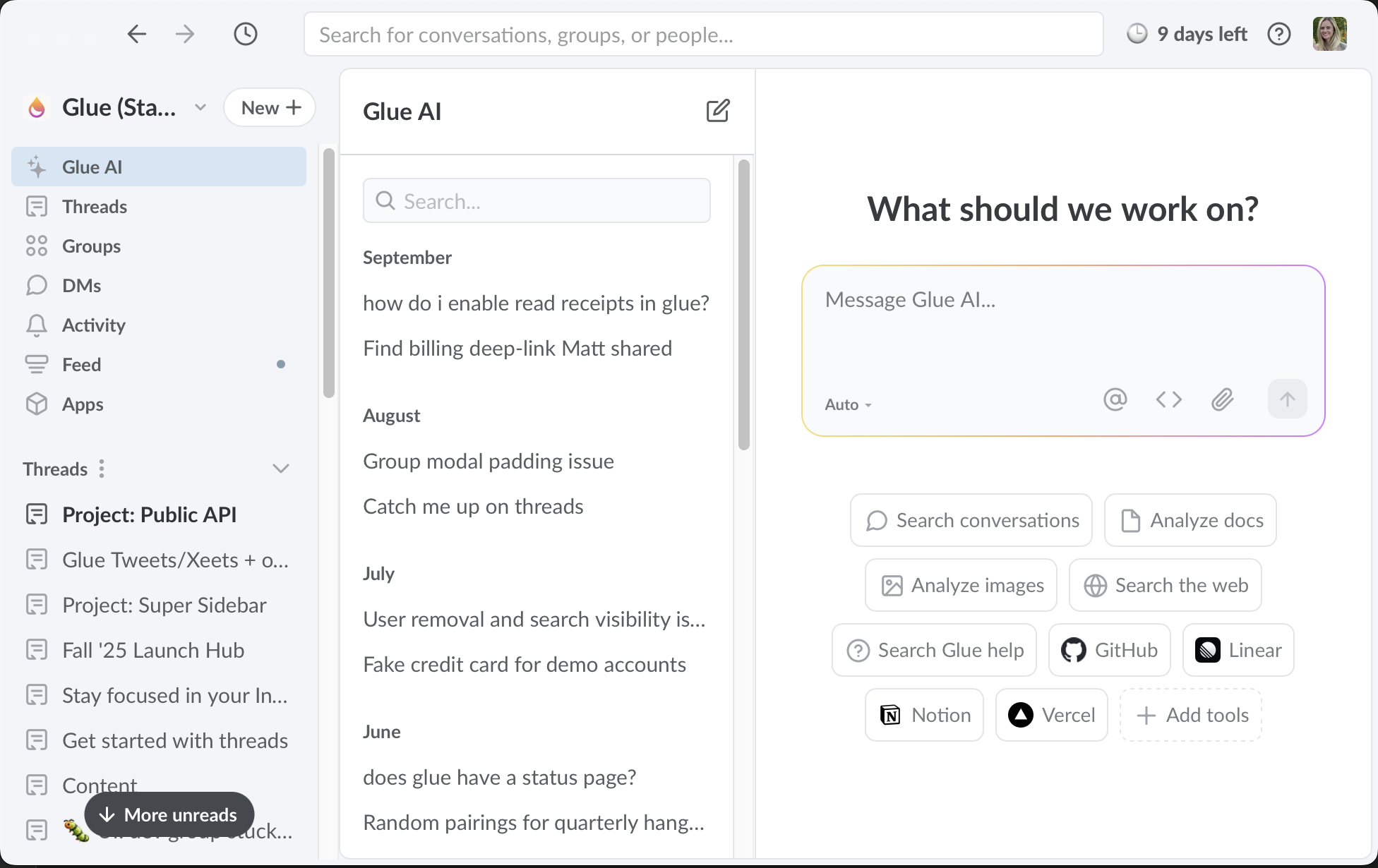
Glue AI has its own section in the app that consolidates all the private threads you've started with Glue AI in one place. Think of it as your personal scratchpad with Glue AI! Any conversation you have here is private to you.
You'll also see suggested prompts at the bottom of the composer with queries that you can ask Glue AI. These include questions about groups, users, or threads as well as prompts to analyze a document, provide feedback, or ask Glue AI questions about how Glue works. Click on any of these prompts to automatically add to the composer.
You can change your LLM model directly from the Glue AI tab by selecting the drop down menu in the mesage editor. The model is set to auto by default.
## Collaborate with Glue AI and your team
### Turn your single-player thread into a multi-player one
If you'd like to share your 1:1 conversation with Glue AI with others, you can @ mention the person or group in your next message in the thread and select to add them, or use the Add button at the top of the app. Once a Glue AI thread is shared with others, it will be moved out of the Glue AI tab and into your thread inbox.
### Start a session with Glue AI in an existing thread or chat
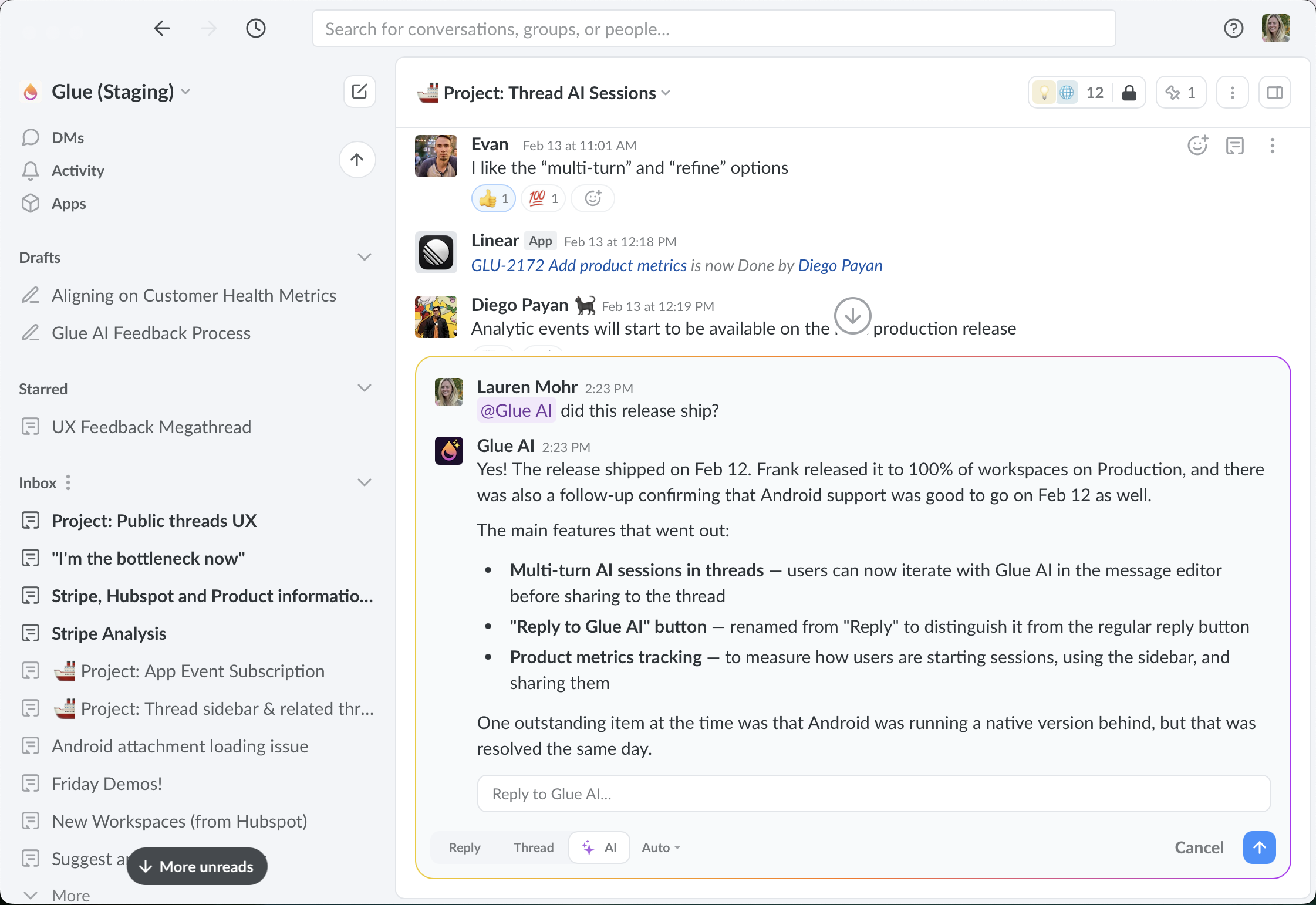
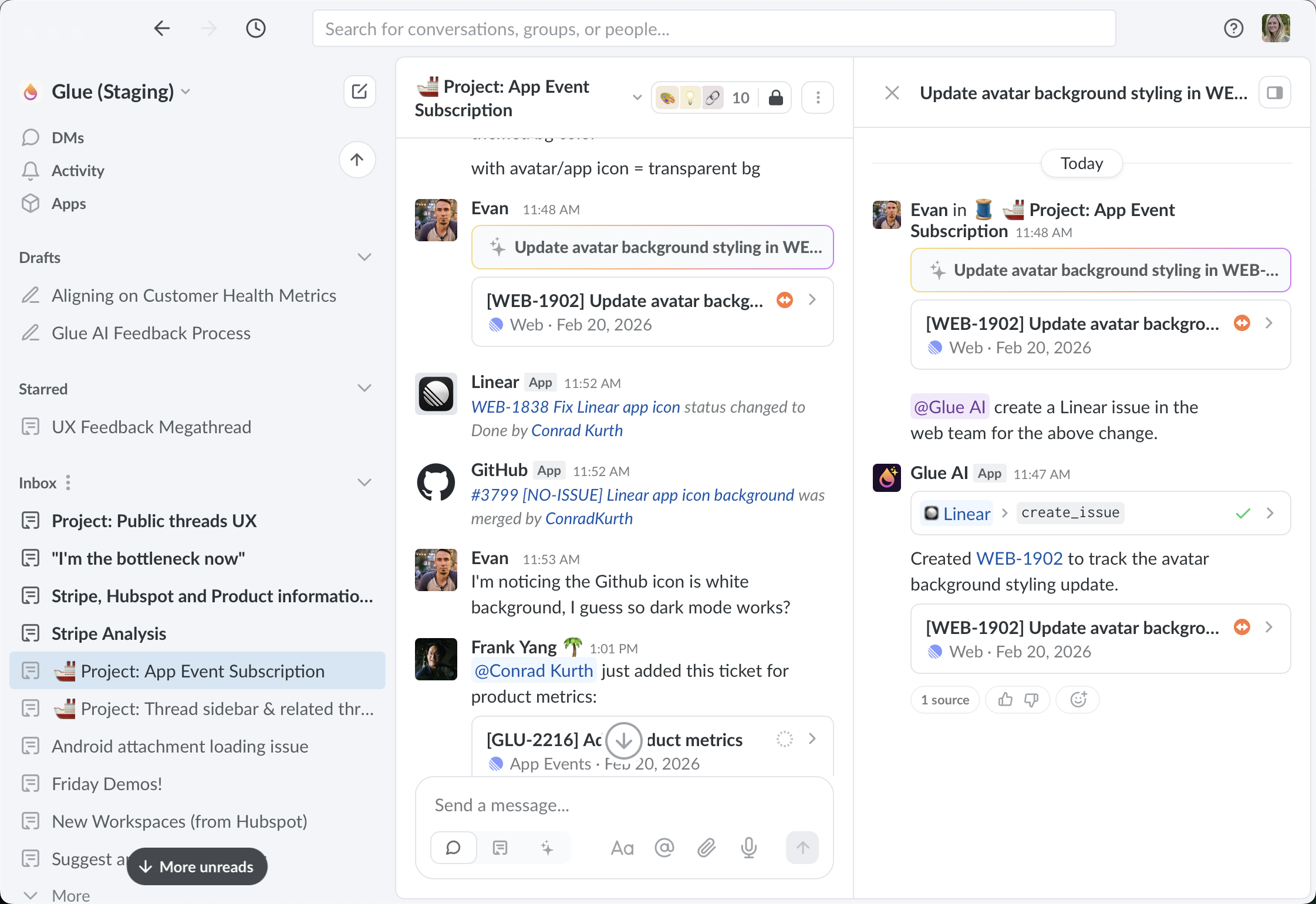
You can also interact with Glue AI in any existing multi-player thread or chat, with the ability to preview the response before sharing it. Once you share the response, everyone in the thread can view and interact in a multi-player prompting experience that is unique to Glue!
#### Starting the session with Glue AI in the message editor
* Type `@Glue AI` or click the sparkle ✨ icon in the message editor (in a thread, group chat, or DM) to start the Glue AI session.
* The message editor will switch colors to show you're now in the Glue AI editor, and`@Glue AI` appears at the start of the message
> 💡 **Tip:** Delete the `@Glue AI` mention to exit out of the session and return to normal messaging
#### **Generating your first response**
* Write your message and click **Generate** icon.
* Glue AI processes your prompt and starts drafting a response. You can cancel while it's still drafting if you need to go back.
* You’ll see your original message displayed above the AI’s response preview.
#### **Refining your response in the sidebar**
Want to iterate before sharing? You don't have to settle for the first response.
* Click **Reply to Glue AI** to continue the conversation
* A dedicated session sidebar opens
* Go back and forth with the AI to refine your ideas
* Take as many turns as you need—there's no rush
{% hint style="warning" %}
Right now the multi-turn session option is only available in threads, but will be available in all message types soon.
{% endhint %}
#### **Sharing with your team**
When you're happy with the result:
* Click **Share** to publish the exchange to the thread
* Glue automatically summarizes your conversation for your team
* The session closes and your summary appears in the thread
#### **What your team sees:**
* A concise summary of your AI session — this is color coded to show it's from Glue AI
* Highlighted artifacts like code, documents, or key outputs
* Click on the summary to view the full exchange in the sidebar
## Best practices for Glue AI prompting
{% hint style="info" %}
Give Glue AI as much context as you can in the prompt for more relevant answers
* Mention the specific group or thread where the information is found, if you know it
* Tell it to search the web if you want it to pull in outside sources
* Make your questions specific and detailed
{% endhint %}
## Find information about Glue AI's response
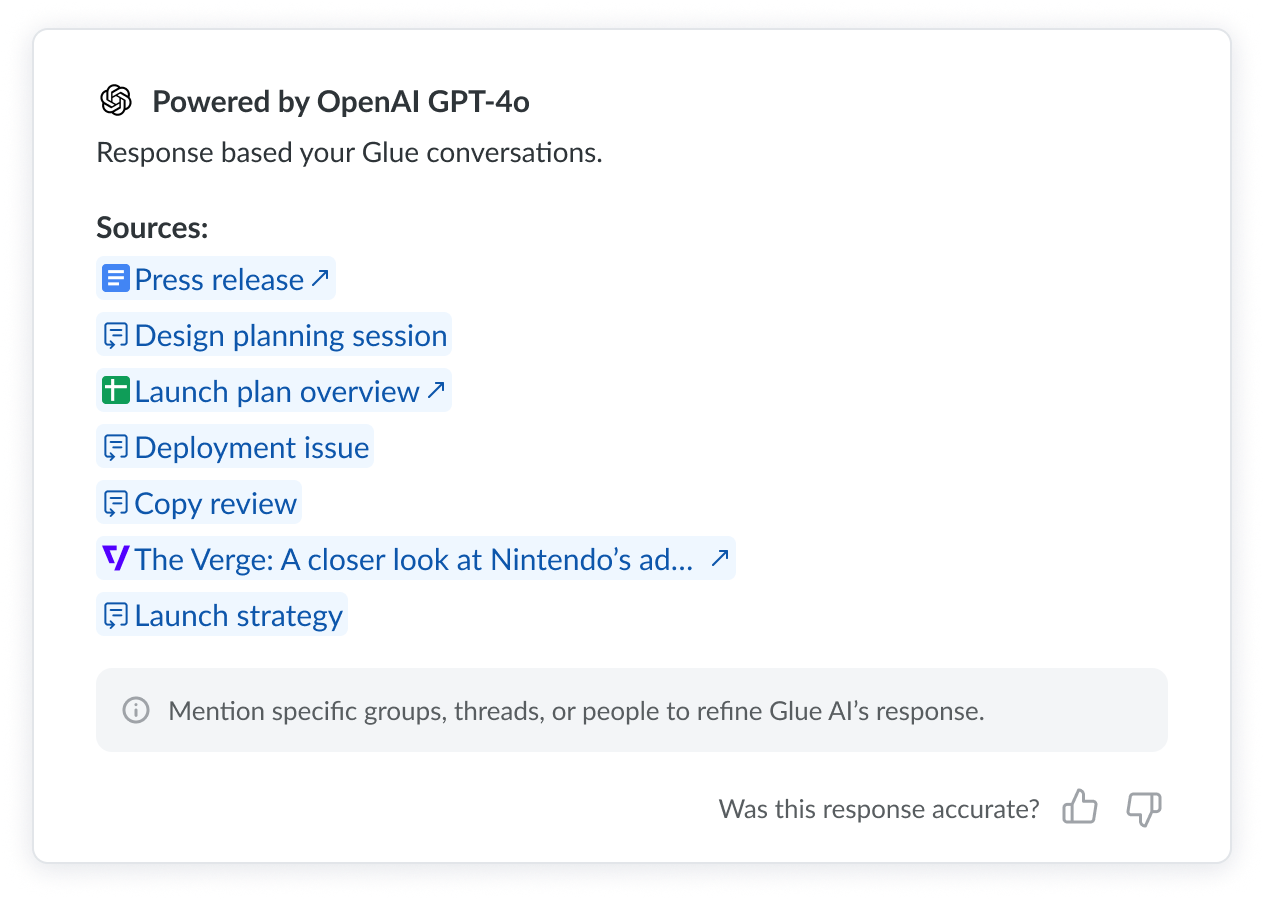
There's an info icon when you hover over a message reply from Glue AI. This opens an information card that includes the model Glue AI used in it's response, as well as the list of sources. You can also leave feedback from this view.
## Give feedback on Glue AI!
Let us know how it's going! If there's anything that is confusing about an answer from Glue AI or it isn't clear how to prompt it, we want to hear your feedback!
#### **Feedback on responses from Glue AI**
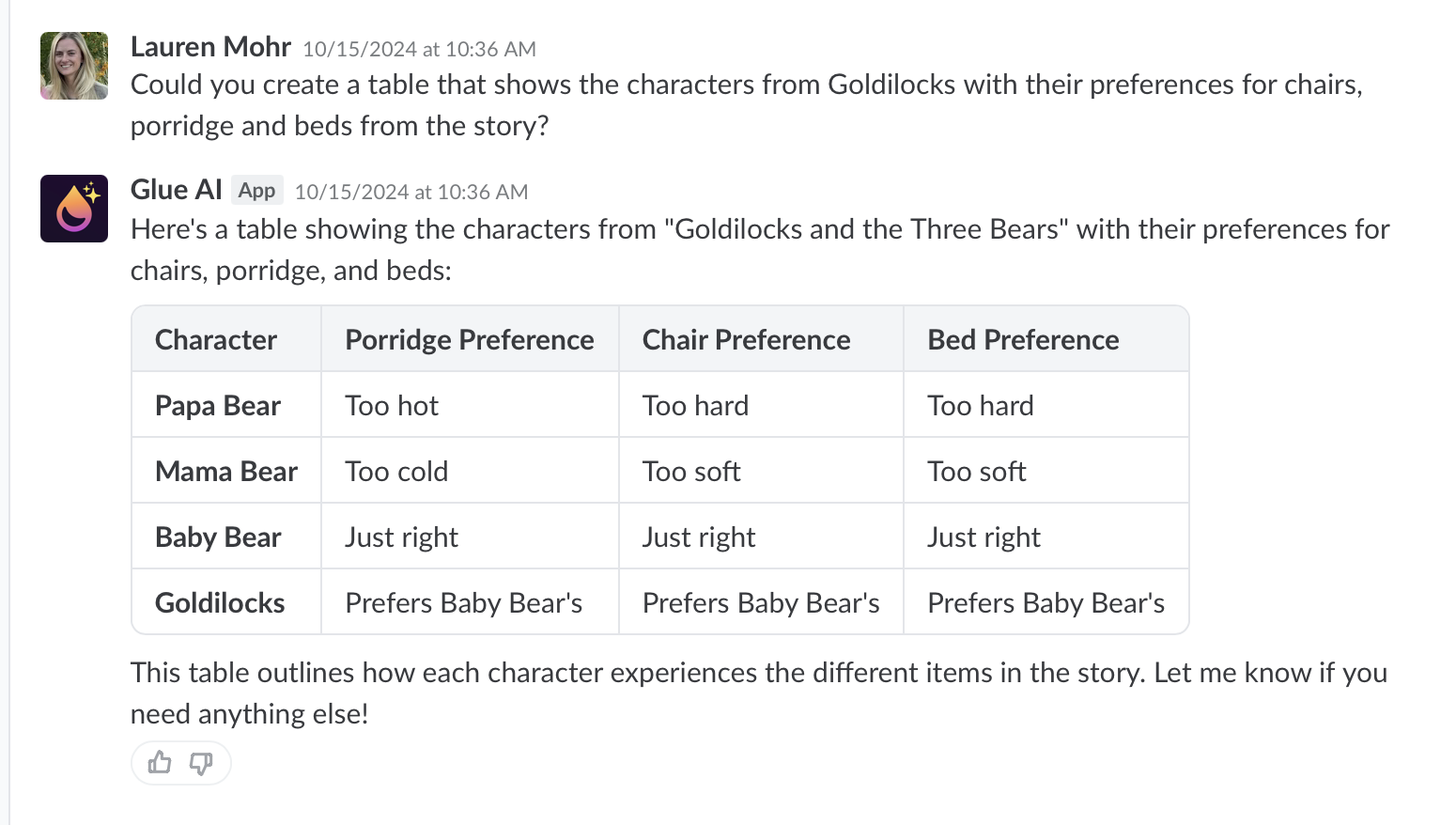
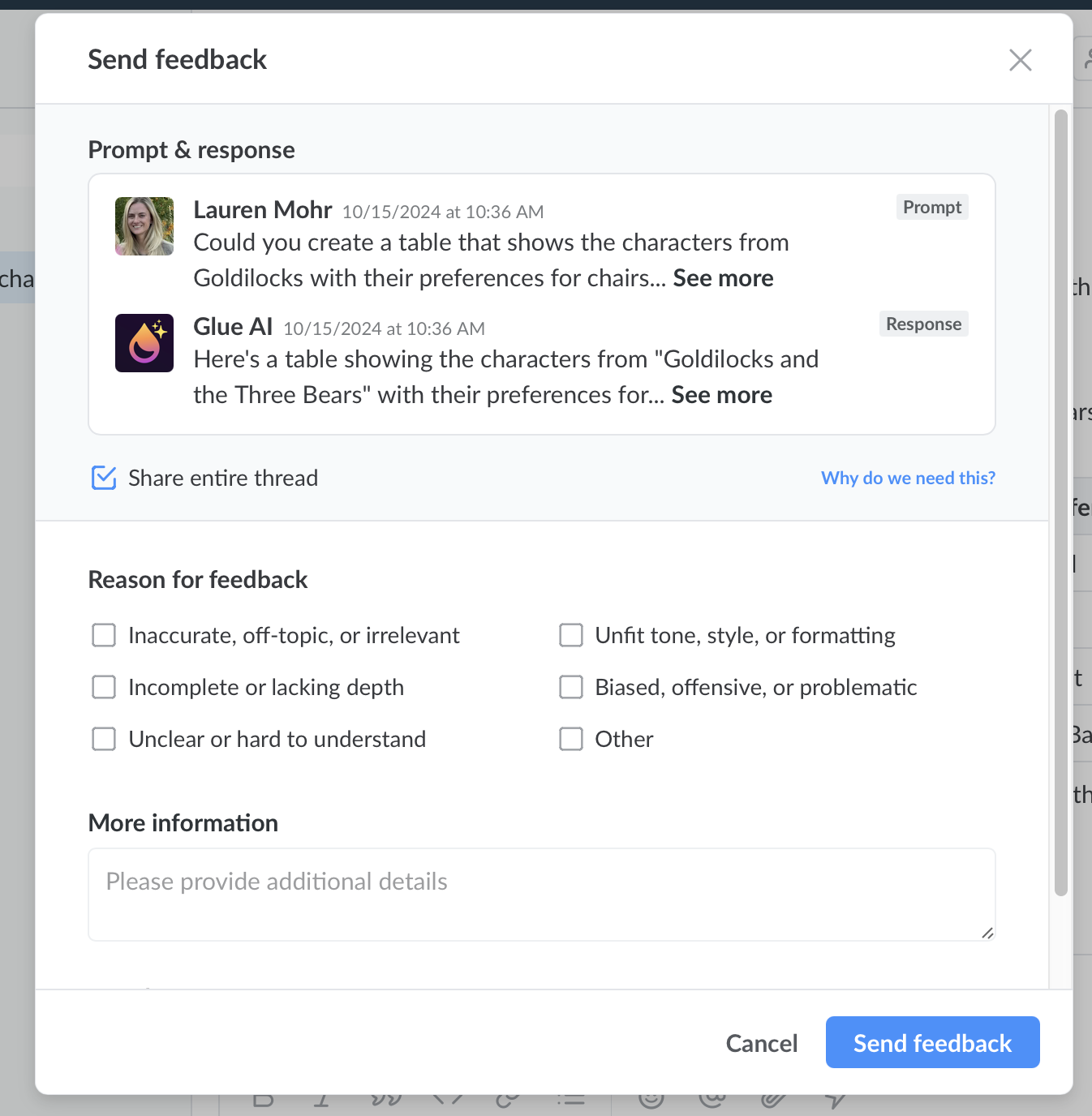
Press the thumbs up 👍 or thumbs down 👎 icon at the bottom of the response from Glue AI. The thumbs down button will open a feedback form to give us more details. We really appreciate any detailed feedback you provide in here to help us make Glue AI better!
Select the thumbs up or thumbs down at the bottom of the response
Glue AI feedback form for bad responses
#### **General feedback on Glue AI**
[Contact our support team:](/get-started/help-and-support.md) Start a new thread with us by going to the Help icon next to your profile picture and clicking **Contact Support.**